 Stay Sticky
Get Stay Sticky
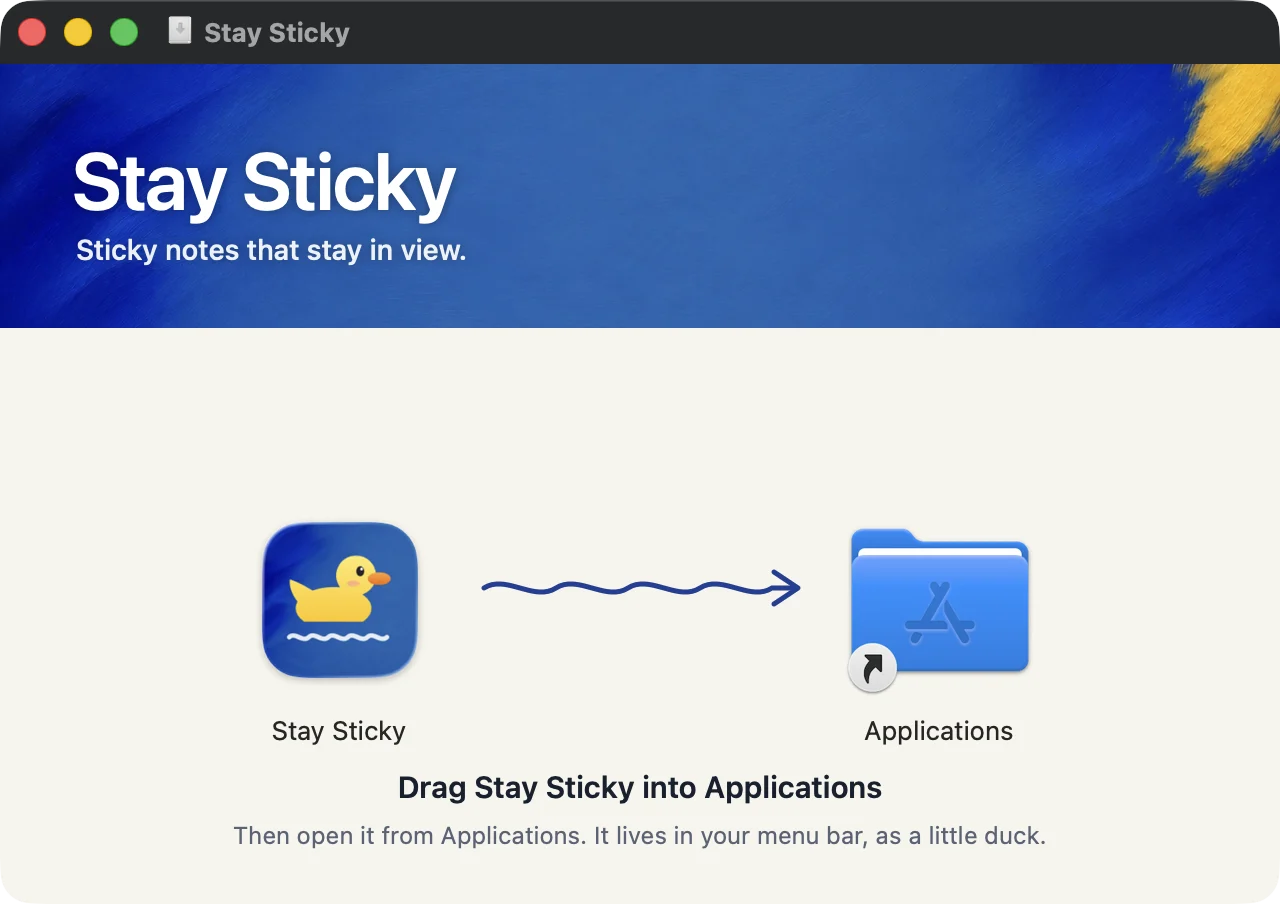
1. Drag Stay Sticky into Applications
Open Stay-Sticky.dmg from your Downloads. A window like this appears: drag the duck onto the Applications folder.
2. Open it
Open Stay Sticky from your Applications folder. The first time, your Mac asks whether to open an app from the internet, and says Apple has checked it for malicious software. Choose Open. It only asks once.
If you open Stay Sticky from somewhere else, it offers to move itself into Applications, because that's where it can keep itself up to date.
3. Find the duck
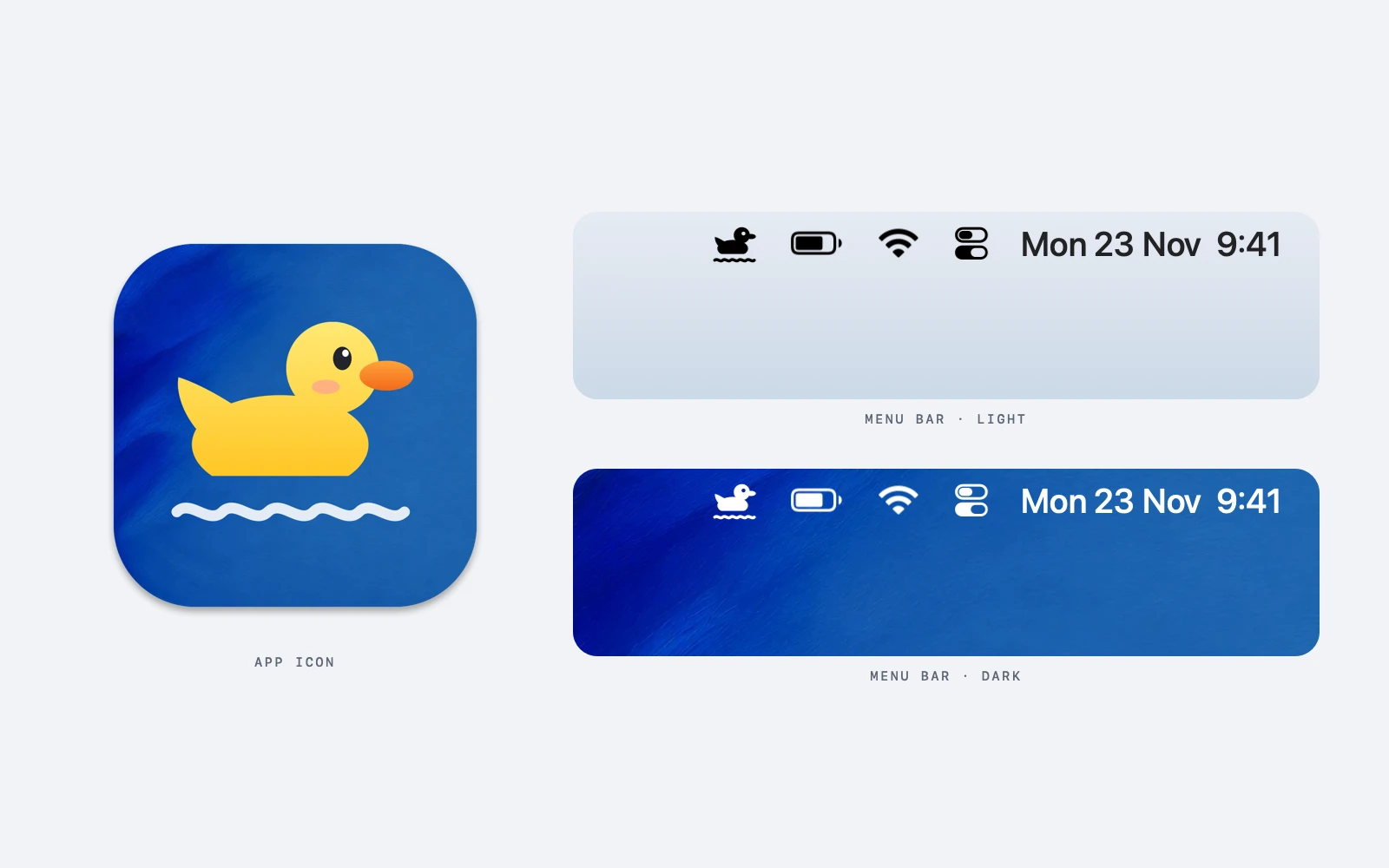
Stay Sticky lives in the menu bar, not the Dock: a little duck at the top of your screen, beside the clock, looking rather pleased with itself. Click it to show or tuck away your notes, right-click it for the menu. A first note shows you the rest.
What Stay Sticky asks of your Mac
Nothing. No account, and no standing access to your files, contacts, screen or keyboard: Stay Sticky opens a file or folder only when you pick it (a picture, Stickies to import, where to save Markdown). It's a sticky note; it knows its place. Your notes are kept on your Mac alone. See Privacy.
Removing Stay Sticky
Quit it from the duck's menu, then drag Stay Sticky from Applications to the Bin. The duck won't take it personally. Your notes stay in ~/Library/Application Support/Stay in case you come back; delete that folder too to remove them.